Seating Chart Maker for Teachers
Paste your class list, shuffle, and print. A seating chart in 30 seconds, with rules that keep the right students apart. Free, no signup.
- Free
- No signup
- Your class lists stay on your device unless you turn on sync
- Print-ready Letter & A4
- 1Add students
- 2Shuffle
- 3Print
Arrow keys move between seats. Enter picks up a student, Enter again swaps. P pins, B blocks, S shuffles.
How to make a seating chart in 3 steps
ClassRows is a free seating chart maker for teachers that runs in your browser, with no signup. Making a chart takes three steps and about 30 seconds.
-
Add your students. Paste your class list with one name per line, or import a CSV from Excel or Google Sheets. ClassRows handles "Last, First" names, numbered lists, and tab-separated columns, and shows a preview before anything is added.
-
Shuffle. ClassRows picks a layout sized to your class and seats every student in one click. Add rules first if you need them, and every shuffle will follow them. Not happy with the result? Shuffle again.
-
Print or download. Print straight from your browser, or download a PDF or PNG sized for Letter or A4 paper.
That's the whole job. Everything after this is optional: dragging students to fine-tune, moving desks to match your room, or adding a second chart for test days.
Everything you need — free
Every feature in this seating chart maker is free. There's no trial, no watermark, and no export locked behind a signup.
| 6 room layouts | Rows, pairs, pods of 4, horseshoe, testing, and lab benches. Adjust the number of rows and desks, then drag desks to match your real room. |
|---|---|
| Drag and drop | Drag a student onto any seat. Drop them on a taken seat and the two swap places. |
| Pin and block seats | Pin students who must stay put, and block seats that shouldn't be used, such as a broken desk or the seat by the door. |
| Seating rules | Keep apart, keep together, and front row. Set them once and they apply to every shuffle. |
| Auto-arrange | One click seats the whole class around your pins and rules. |
| Conflict alerts | If a rule can't be met, ClassRows tells you which one and highlights the students involved. |
| Multiple classes | A separate roster, rules, and charts for every class or period you teach. |
| Undo and redo | Up to 50 steps. Ctrl+Z works the way you expect. |
| Print, PDF, and PNG | Letter or A4, portrait or landscape, in student view or teacher's view. |
| Autosave and backup | Every change saves in your browser. Download a backup file whenever you want a copy you can restore. |
ClassRows works on Chromebooks, Windows and Mac laptops, and iPads. Drag and drop works with a mouse, a trackpad, or touch. Each class holds up to 60 students.
Seating rules that do the work for you
A seating chart is only as good as the rules behind it. Anyone can put names in boxes at random. The hard part is remembering, every time you reshuffle, that two students can't sit near each other and three others need to be up front. ClassRows remembers for you.
Three rules cover almost every classroom:
- Keep apart. Choose two or more students who shouldn't sit near each other. ClassRows keeps them out of the same desk group and out of neighboring seats, including front-and-back and diagonal.
- Keep together. Choose up to four students who should sit at the same desk group or right next to each other, such as lab partners, a reading buddy, or a student who helps a classmate with English.
- Front row. Choose students who need to be close to the board. By default, the seats nearest the whiteboard count as front row, and you can mark any other seat as front row too.
Rules are saved with the class. Set them in September and they still apply in March, whether you change layouts, add a new student, or shuffle for the fifth time.
Pins and rules work together. Pinned students never move. The shuffle arranges everyone else around them while still following your rules. That means you can lock in the three placements you care about and let ClassRows handle the other 25.
You'll always know when a rule can't be met. Sometimes a room makes a rule impossible, for example four students who need front row when only three front seats are open. ClassRows still seats everyone, then shows a conflict badge with the rule that wasn't met. Click it to see exactly who's affected and fix it by hand.
If all you need is a fair, quick shuffle, the random seating chart generator puts the Shuffle button front and center. It uses the same rules.
When teachers reach for a seating chart
Most teachers make a seating chart at the start of the year and then keep coming back to it. These are the moments that bring them back:
- The first day of school. Assigned seats from day one help you learn names, take attendance at a glance, and set expectations before habits form.
- Every few weeks. When a room stops working, with two friends who can't stop talking or a group that never gets started, a reshuffle fixes it faster than a lecture.
- Sub days. A substitute with a clear chart can take attendance, call students by name, and leave a useful note. Print in teacher's view so the chart matches what they see from your desk.
- Test days. Switch the same class to a spaced-out testing layout without losing your everyday seating.
- Group work. Move desks into pods of four for a project week, then switch back.
- New students. Add a name mid-year and drop them into an open seat, or reshuffle the whole class around your existing rules.
Each of these takes a minute or two once your class is set up. For layout-by-layout advice on setting up a room, see our guide to the classroom seating chart.
Start from a printable template
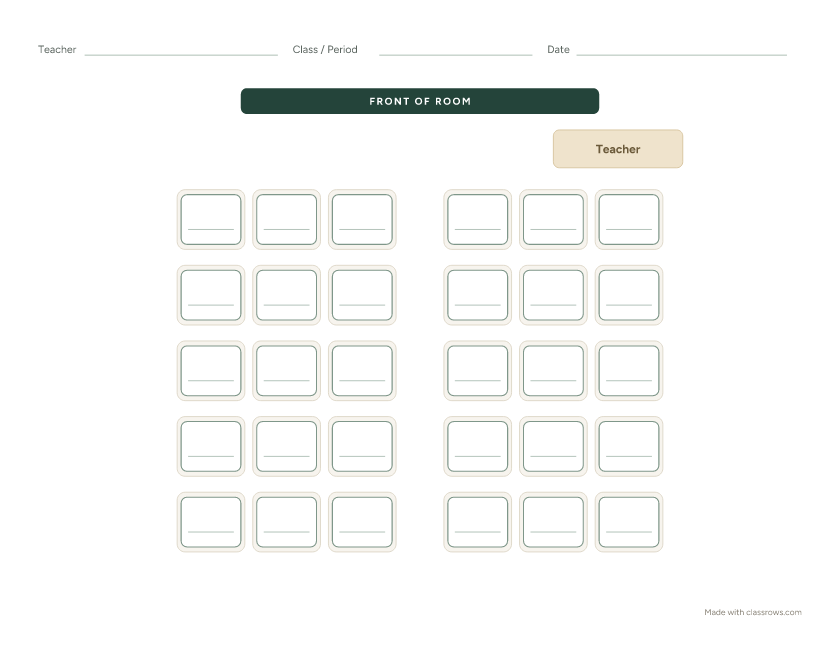
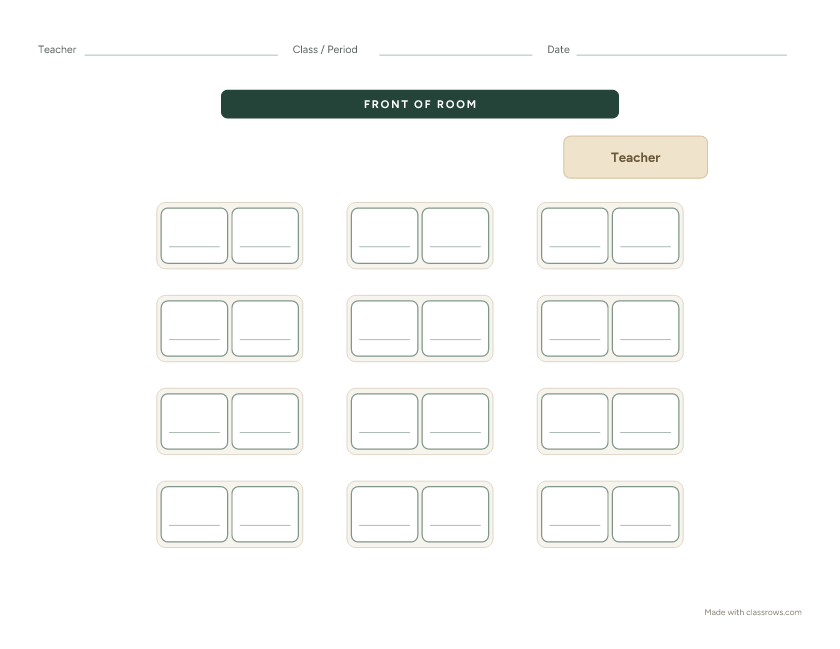
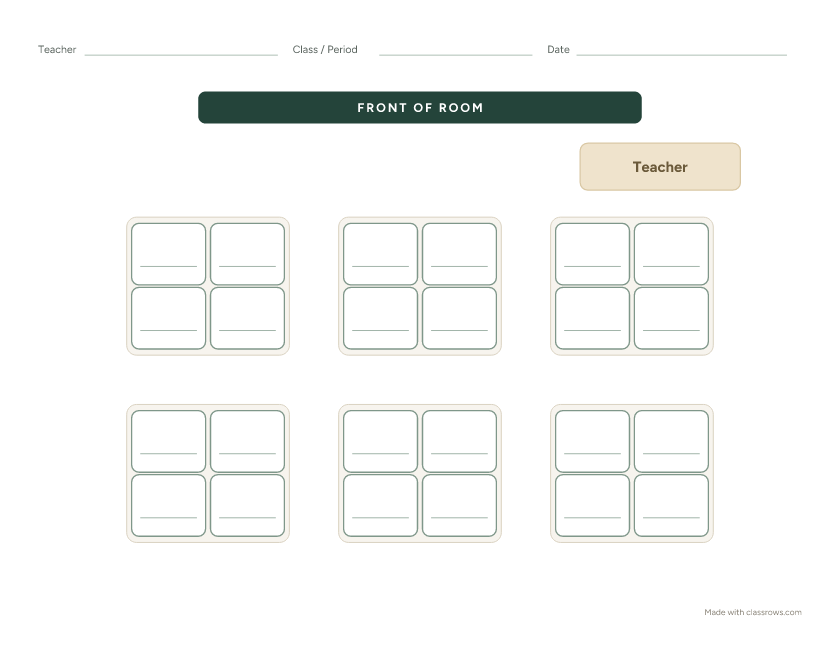
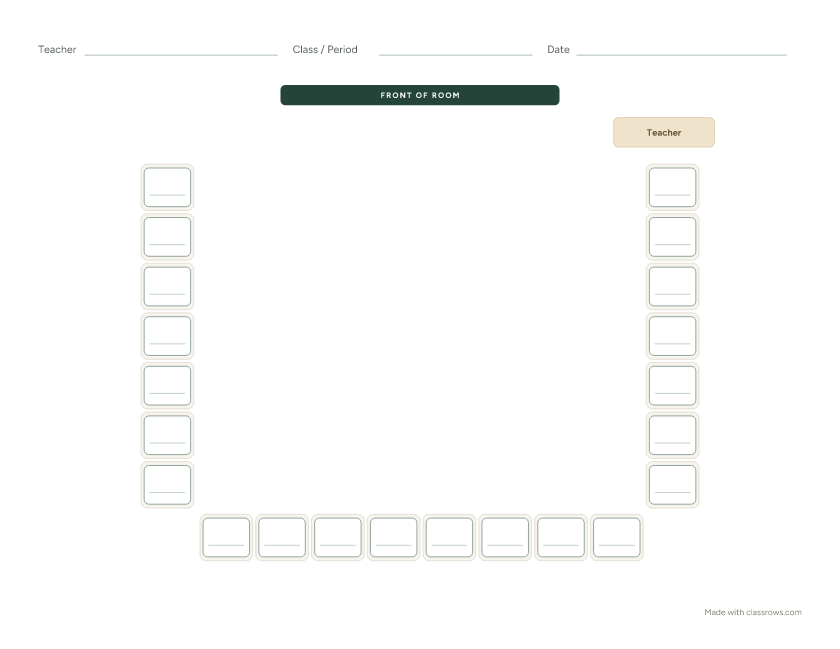
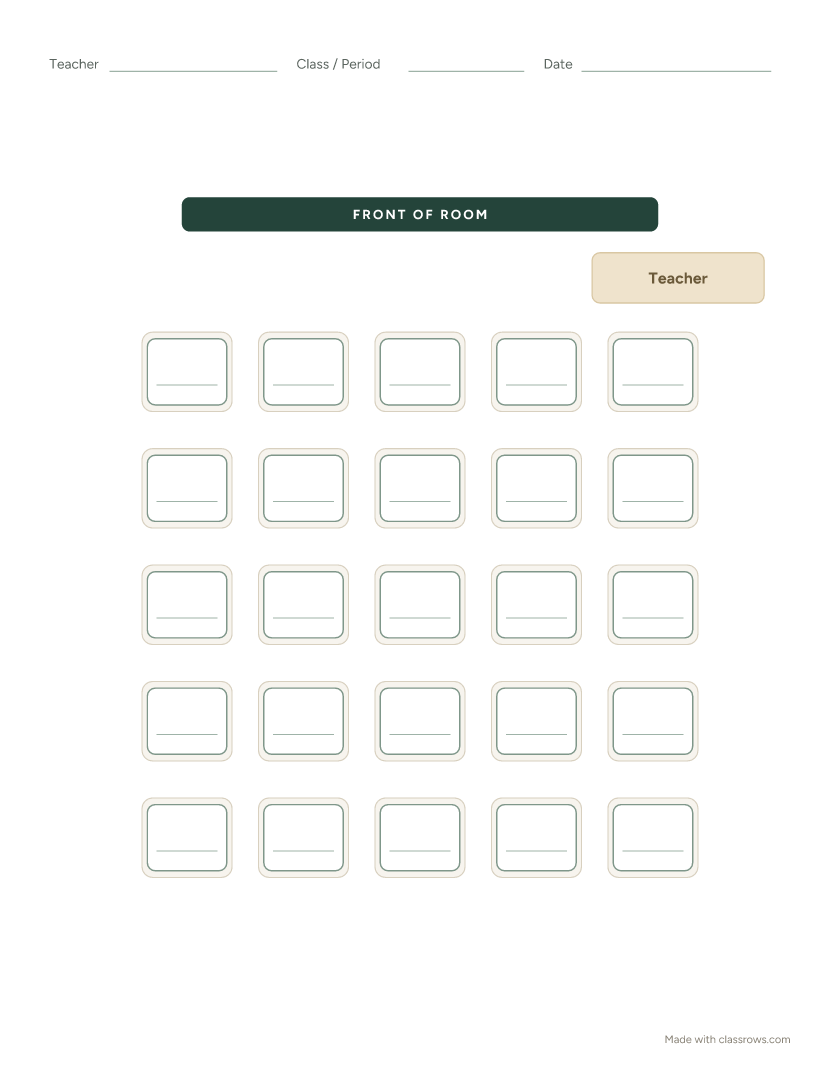
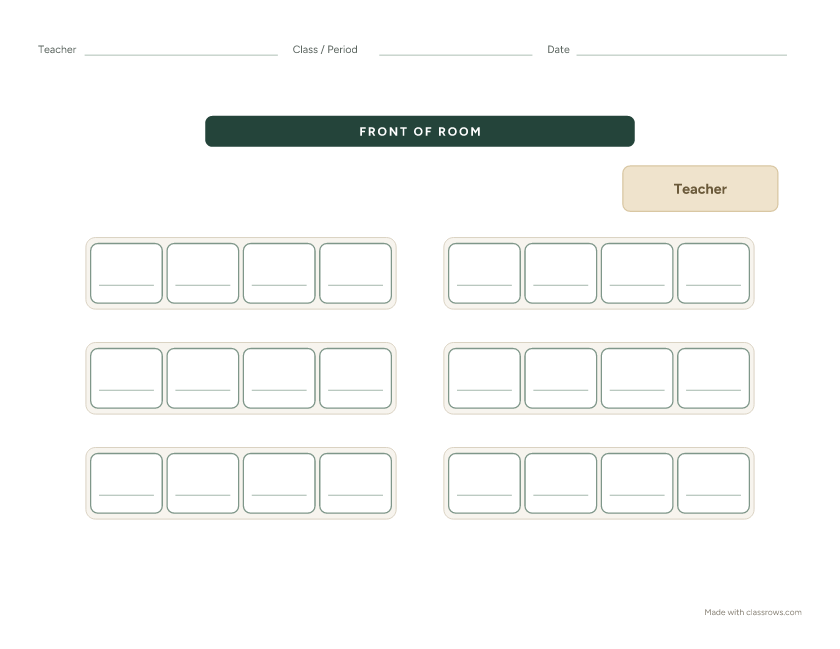
Some teachers like to sketch on paper before they commit. ClassRows has six free printable templates, one for each layout: rows, pairs, pods of 4, horseshoe, testing, and lab benches. Each one comes as a Letter or A4 PDF, ready to print and fill in by hand.
Every template also opens in the editor with one click, so you can paste your class list and let ClassRows fill in the names instead.
Your class lists stay on your device
ClassRows runs in your browser. Your class lists are saved on your device, not on our servers. Sync across computers is optional, off by default, and only turns on when you choose it.
That design choice matters for teachers:
- No account, no upload. You don't sign up to use ClassRows, so there's no student data sitting in an account you forgot about.
- Nothing is sold or shared. We use anonymous analytics to understand which features teachers use. Analytics never receives student names.
- You stay in control. Clearing your browser data removes your class lists completely. Download a backup file to keep a copy you can restore any time.
For details on how ClassRows handles student data, including FERPA and COPPA, see our student data privacy page.
Frequently asked questions
Is ClassRows really free?
Yes. Every layout, rule, shuffle, and export described on this page is free, with no trial period and no watermark. ClassRows Pro adds optional extras for teachers who use it all year, such as sync across computers. Nothing you need to make and print a chart is locked.
Do I need to create an account?
No. Open the page and start. There's no signup, no email, and no login.
Can I save my seating chart and come back later?
Yes. Every change saves automatically in your browser, so you can close the tab and pick up where you left off on the same device. ClassRows also keeps your last 3 printed or downloaded arrangements for each chart, so you can restore an earlier version. To move your work to another computer, download a backup file and open it there.
What happens if I switch computers or my laptop breaks?
Your class lists live in the browser where you made them, so a new computer starts empty. Download a backup file from ClassRows now and then, especially before a new term. On the new computer, open ClassRows and import the file, and your classes, rules, and charts come back exactly as they were. If you'd rather not think about backups, ClassRows Pro offers optional sync across computers, off by default.
Can I print my seating chart?
Yes. Print directly from your browser or download a PDF, sized for Letter or A4, in portrait or landscape. You can also download a PNG for slides or sub plans.
How many students can I add?
Up to 60 students per class, with as many classes as you need.
What if two students have the same name?
That's fine. ClassRows tracks each student separately, so rules and seats never get mixed up. It flags duplicate names when you add them and suggests adding a last initial, so the printed chart is easy to read.
Is this a wedding or event seating chart maker?
No. ClassRows is built for classrooms: desks, rows, and rules about which students sit where. You won't find round tables for 200 guests or RSVP lists here.
Does it work on a Chromebook or iPad?
Yes. ClassRows runs in Chrome, Safari, Edge, and Firefox, on Chromebooks, laptops, and tablets.
Make your seating chart
Paste your class list and have a printed chart in 30 seconds. ClassRows is the free seating chart maker for teachers — no signup, and your class lists stay on your device unless you turn on sync.
Make your seating chart